
- Where
- F-Predict → Saved, any lane, and the Design board
- Steps
- 3
- Time
- About 3 min
Before you start: Saving analyses and tracking need you to be signed in.
Step 1: Reopen saved analyses
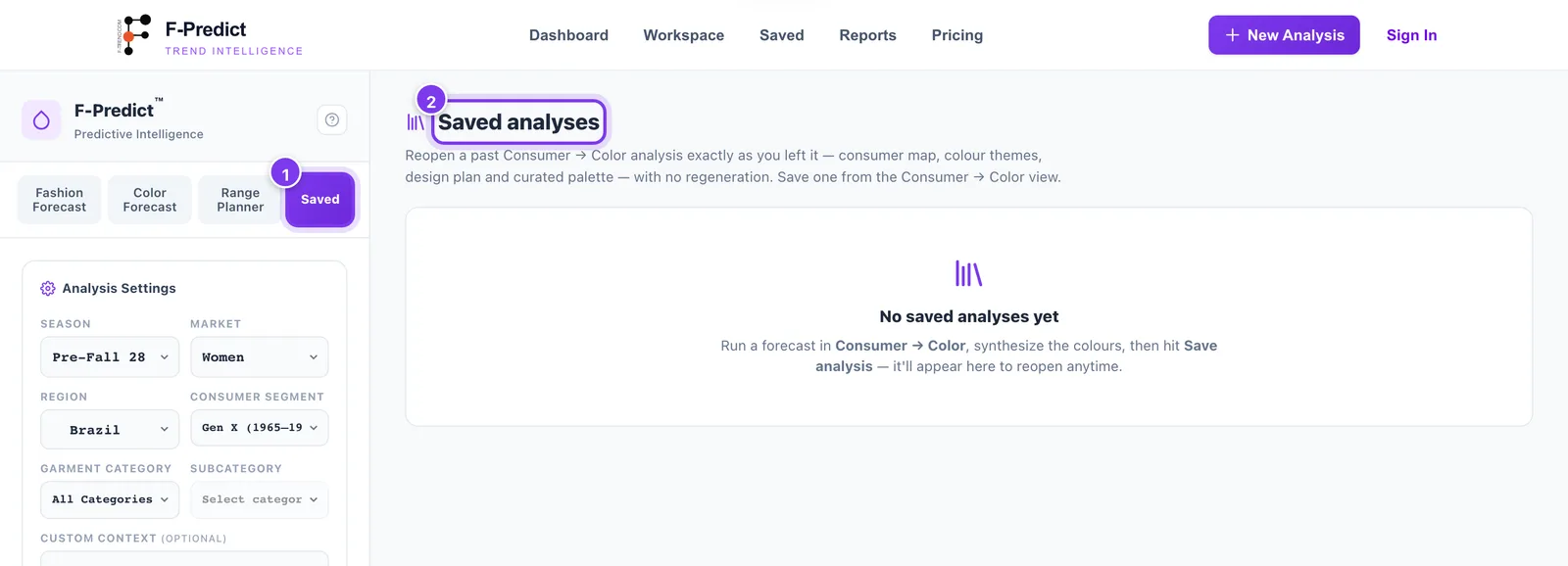
The Saved tab showing the Saved analyses library and the Saved settings control in the left panel. Once the colours are synthesised, press Save analysis. The Saved tab lists every saved analysis; reopening one restores the consumer map, colour themes, design plan and curated palette exactly as you left them, without regenerating anything.
- Saved tab — your analysis library.
- Saved analyses — reopen any analysis without regenerating it.
- Saved settings — saved scopes, kept separately from saved analyses.
Step 2: Track a lane for changes
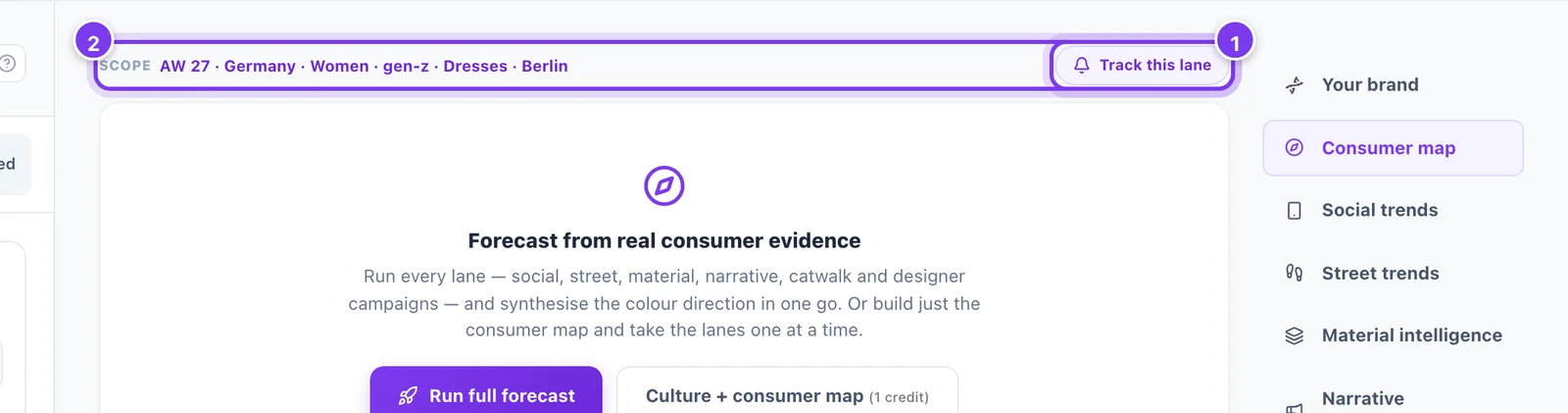
The forecast panel header with the scope AW 27 · Germany · Women · Gen Z · Dresses · Berlin and the Track this lane button. Track this lane watches the scope shown beside it. When the signals in a tracked lane shift, you get an in-app notification and the change appears in your email digest. Tracking is part of the paid plans.
- Track this lane — alerts when this lane’s signals change.
- Scope — exactly what is being tracked.
Step 3: Export the board and palette
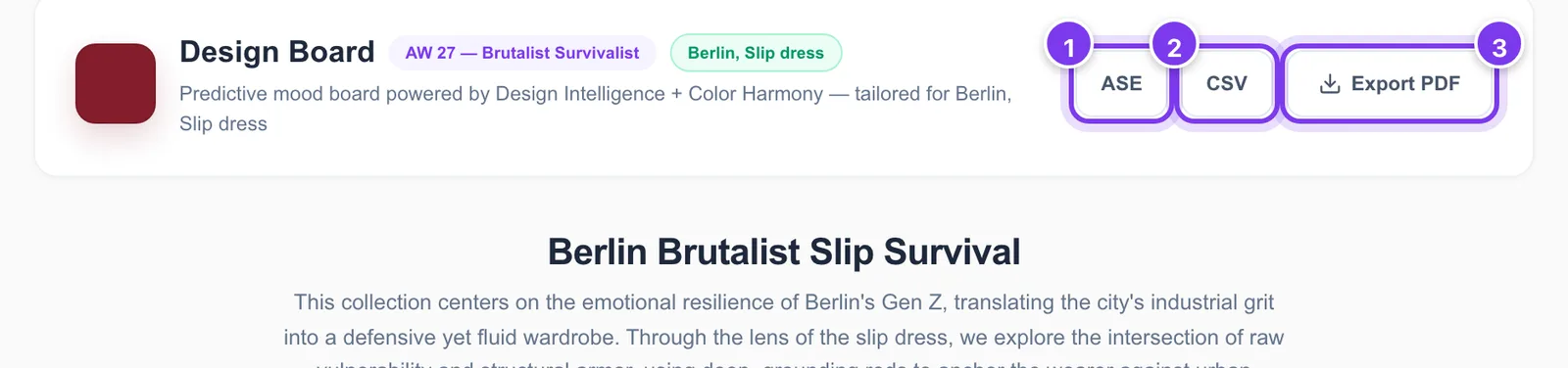
The Design Board header with the ASE, CSV and Export PDF buttons. From the Design board, export the palette as ASE (Adobe swatch exchange) or CSV, or the whole board as a PDF. Colours also move to the Color Planner with Send colours to Color Planner, and team plans can save forecasts to a shared workspace for review and approval.
- ASE — the palette as Adobe swatches.
- CSV — the palette as a spreadsheet.
- Export PDF — the full design board.
What you have now
Your forecasts kept, watched and shareable — reopened without regeneration, tracked for change, and exported in formats your design tools already read.
Frequently asked
Can my team see my saved analyses?
Saved analyses are per user. To work as a team, use a team plan’s workspace, where forecasts and plans are shared, reviewed and approved.
What triggers a tracking alert?
A change in the signals of a lane you track for a given scope. F-Predict checks tracked lanes on a schedule and notifies you in the app and in an email digest when something has shifted.
Keep reading
How do I generate a design board in F-Predict?
Open the Design board tab, pick a design-plan archetype and a seed colour from its palette, choose an image style — Flat-lay, Textile, Runway, Lifestyle, M…
How do I run my first forecast in F-Predict?
Open F-Predict, choose Fashion Forecast and fill in Analysis Settings: season, market, region, consumer segment, garment category, subcategory and an optio…
What is F-Predict?
F-Predict — formally F-Trend Predict — is an AI fashion forecasting platform. A user defines a market scope (product category, region, gender, target seaso…